
Activation of Recorded Videos on your PC
How to Activate The Recorded Lectures on Your PC?
First make sure that you are using Windows PC (not Mac, Linux, Android or iOS device).
Then follow the following steps.
A) Downloading The Lectures:
1- When you Click on a recorded lecture in this website it will not play in the web page, instead it will start downloading to your PC.
2- Wait for the lecture to complete downloading then double click on the downloaded file in your PC to open it.
3- Only in the first time you run the course on your PC you will need Activation. After that all lectures will run automatically and smoothly.
B) Activating The Lectures on Your PC:
1- The first time you attempt to run a recorded lecture of the CPHQ Preparatory Program after download, the following dialogue box will appear to you:
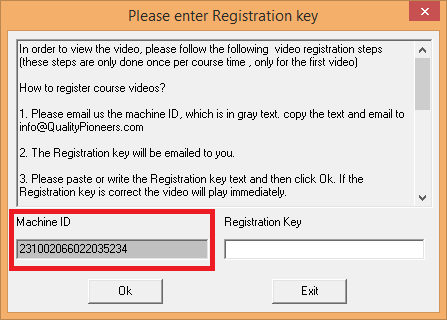
2- Copy the Machine ID number shown to you on your PC and email it to: [email protected]
3- Within 24 hours you will receive the Registration Key specific to your PC.
4- Copy the Registration Key in the relevant box (shown in the previous picture) and click OK.
N.B.:
1- You will need to do the steps above only in the first time you run a recorded lecture on your PC. After that all other lectures of the course will run automatically until the course expiration date.
2- You can run lectures only on 2 PCs per single user. You can purchase additional licenses if you want to run the lectures on more PCs.
C) Installing The Required Video Codecs:
Some PCs lack the required video codec for proper display of the videos, So if you experience a problem in playing the recorded video lectures although you use the right registration key then follow the following steps:
1- Download and install the following program (K lite mega codec pack), you can find it in the following link:
http://www.softpedia.com/get/Multimedia/Video/Codec-Packs-Video-Codecs/KLite-Mega-Codec-Pack.shtml
Click “Download” then select a mirror to download from.
2- After that install the program to your PC.
N.B.: Mostly this is enough to make the lectures works perfectly but if the problem persists please contact us..
